

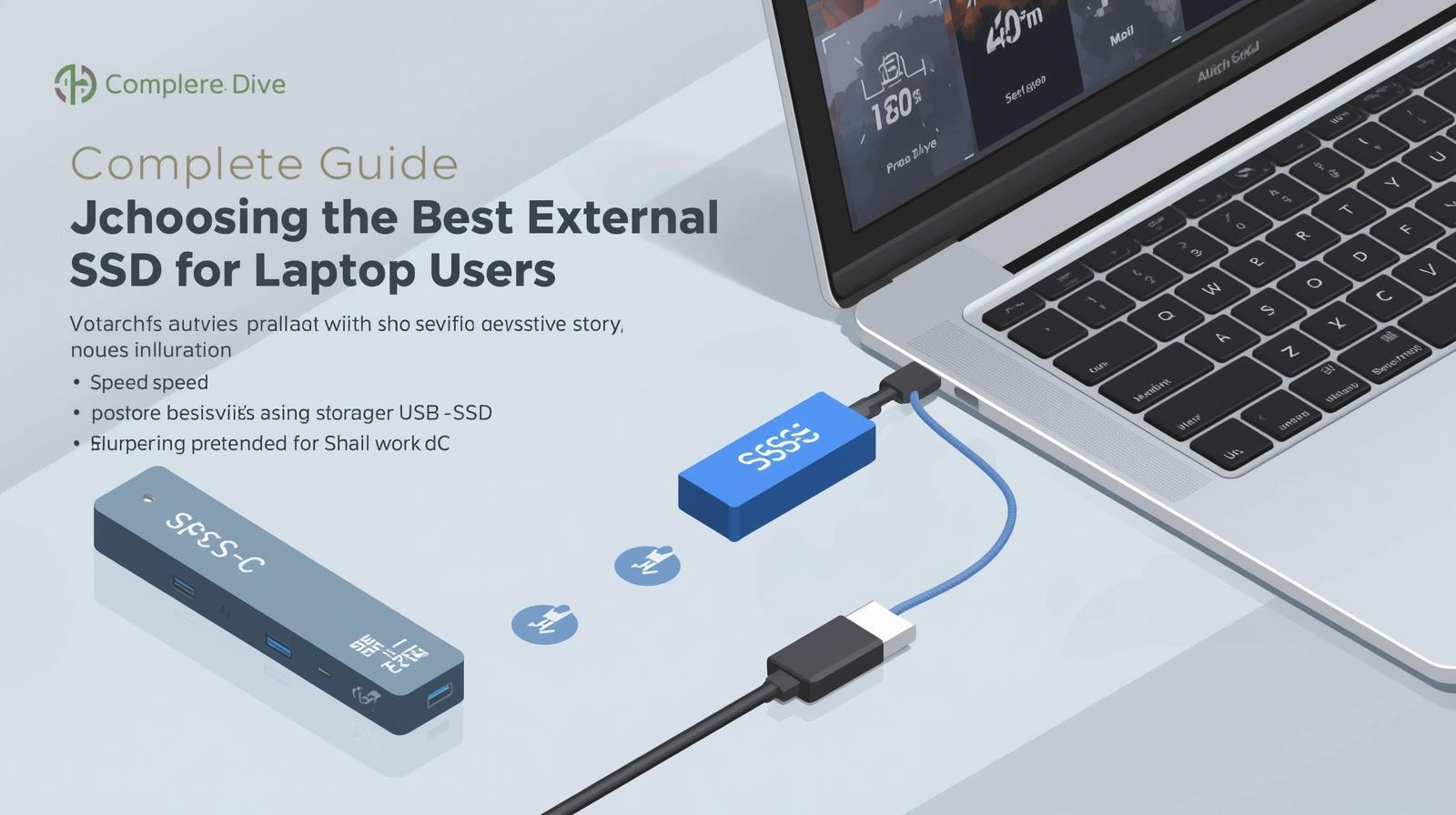
In today’s digital world, a fast and reliable laptop is essential for professionals, students, and creatives. From writing documents and editing videos to managing large files, your laptop’s performance depends heavily on its storage. An external ssd for laptops offers a simple and effective solution.
Unlike traditional hard drives (HDDs), SSDs use flash memory, making them faster, more durable, and energy-efficient. By adding an external SSD to your laptop, you can enjoy smoother performance, quicker access to files, and an overall more responsive computing experience.
What is an External SSD?
An external SSD is a solid-state drive designed to be used outside your computer. It connects to a laptop or PC via USB or Thunderbolt and works like an internal SSD, but without being installed inside the device. Unlike traditional hard drives (HDDs) that use spinning disks, SSDs use flash memory, which makes them faster, more durable, and more reliable.
How do they differ from internal SSDs?
- Internal SSDs are installed inside a laptop or desktop and connect directly to the motherboard via SATA or PCIe, giving slightly faster speeds.
- External SSDs are plug-and-play, offering versatility and portability without installation, perfect for transferring large amounts of data between devices.
Benefits of Using an External SSD for a Laptop
- Faster Data Transfer
External SSDs are up to 10 times faster than traditional hard drives, allowing large files like videos, games, or software to be transferred in seconds. This saves time for professionals, gamers, and anyone who works with big files.
- Better Laptop Performance
Storing files or running apps from an external SSD frees up space on your laptop, preventing slowdowns and keeping it running smoothly. This is especially helpful for designers, developers, and power users who work with large projects.
- Portable and Convenient
External SSDs are compact and lightweight, making them easy to carry in a bag or pocket. They provide quick access to your data anywhere, ideal for students, professionals, or photographers on the go.
- Durable and Reliable
SSDs have no moving parts, so they can handle drops, bumps, and vibrations without breaking. This makes them a safe and long-lasting choice for people who travel or work in different environments.
Factors to Consider When Choosing the Best External SSD for a Laptop
When picking an external SSD, there are several things you should think about:
- Storage Capacity
Decide how much space you actually need:
- 250GB–500GB: Best for basic use like documents, photos, and light files.
- 500GB–1TB: Great for storing lots of videos, music, and photo projects.
- 1TB or more: Recommended for professionals (video editors, gamers, or developers) who work with large files regularly.
- Interface and Compatibility
Check what ports your laptop has:
- USB 3.2 Gen2: Common and fast enough for most users.
- Thunderbolt 3/4: Offers very high speeds (up to 40 Gbps), best for laptops that support it, ideal for professionals needing maximum performance.
Always match the SSD to your laptop’s ports for best performance.
- Price and Budget
- USB SSDs: Affordable and provide good performance for everyday tasks.
- Thunderbolt SSDs: More expensive but worth it for professionals who need the fastest speeds.
Balance your storage and speed needs with what you’re willing to spend.
- Additional Features
Some SSDs offer extras that can make a big difference:
- Rugged designs: Waterproof or shock-resistant models are great for travel.
- Hardware encryption: Provides extra security to protect sensitive files from unauthorized access.
Consider how much storage you need, your laptop’s ports, your budget, and any extra features like durability or security. This will help you choose the external SSD that best suits your needs.
Best Use Cases for an External SSD for Laptop Users
- Students
- Needs: Limited laptop storage, lots of documents, assignments, images; need to move files between school and home.
- How SSDs Help: Affordable, portable drives (500GB–1TB) let students store files and projects offline, carry them easily, and back up work.
- Professionals (Designers, Video Editors, Developers)
- Needs: Large files like raw photos, videos, design assets, or code; work across multiple locations; need fast, reliable storage.
- How SSDs Help: High-speed external SSDs (USB-C, NVMe) allow editing directly off the drive, quick file transfers, and reliable on-the-go storage.
- Gamers
- Needs: Large game files, fast load times, flexibility to carry games between devices.
- How SSDs Help: External SSDs provide extra space for games, faster data transfer, quicker load times, and reliable storage for both PC and console.
- Frequent Travelers / On-the-Go Users
- Needs: Durability, protection against drops/dust/water, portable backups.
- How SSDs Help: External SSDs are durable, lightweight, and fast, making them perfect for travel or on-the-go work.
External SSDs are compact, portable drives that are fast, reliable, and simple to use. They let students, professionals, gamers, and travelers safely store.
Tips for Maximizing the Performance of Your External SSD
To keep your external SSD running fast and reliably for years, follow these tips:
- Safely Eject Before Unplugging
Always use your computer’s “Eject” or “Safely Remove Hardware” option before unplugging your external SSD. This ensures all files are properly saved and prevents data loss, file corruption, or damage to the drive.
- Limit Unnecessary Data Writes
SSDs have a finite number of write cycles. Every time you save or move data, it counts toward these cycles. Constantly overwriting files or transferring unnecessary data can wear out the SSD faster. To maximize lifespan:
- Use your SSD for important or high-priority data, like media projects, large programs, or backups.
- Offload less important files to other drives or cloud storage.
- This reduces wear and keeps the SSD running efficiently over time.
- Keep the SSD Cool
Excessive heat can slow down the SSD and damage its components. To prevent this:
- Avoid leaving the SSD in direct sunlight or hot environments.
- Ensure it has good airflow while in use.
- Avoid placing it on surfaces that trap heat, like blankets or cushions.
- Some high-performance SSDs even include heat sinks or aluminum casing to help dissipate heat and maintain consistent speeds.
- Update Firmware and Drivers
Regularly updating your SSD’s firmware and your laptop’s drivers ensures optimal performance, fixes bugs, improves compatibility, and helps prevent slowdowns or data loss.
- Organize Data Efficiently
Filling the SSD can reduce its performance. Keeping 10–20% of free space allows the drive to manage data more efficiently and prevents wear on the memory cells. Regularly:
- Delete unnecessary or old files.
- Organize folders logically for easier access.
- Avoid using the SSD as a dumping ground for random files.
- This not only keeps it fast but also prolongs its lifespan.
Taking simple steps like safely ejecting, minimizing writes, keeping it cool, updating firmware, and organizing files helps your external SSD stay fast, reliable, and durable for years.
 businessnewstips